How to turn your photo folders into a beautiful gallery on your computer
Updated October 7, 2026
Start with folders that tell a story
A gallery is only as browsable as its structure. You don’t need anything elaborate. One folder per trip, event or theme works well, because each folder then becomes something you’d want to open:
2023-08 Lake District,2024 Mia’s first year,Garden through the seasons- Group them under a handful of top-level folders: Family, Travel, Projects.
- Leave the unsorted camera-roll dumps in their own folder so they don’t clutter the gallery.
Starting a date with the year and month keeps folders in order however you sort them. Short, human names read much better on a gallery card than IMG_Export_final_2.
Give every folder a cover
This single change does more than anything else. A wall of folder icons tells you nothing; a wall of cover photos is a gallery.
File managers mostly make a folder thumbnail from whichever images come first, which is rarely the best shot. In Loshelf, folders are shown as cards and you can choose the cover for each one.
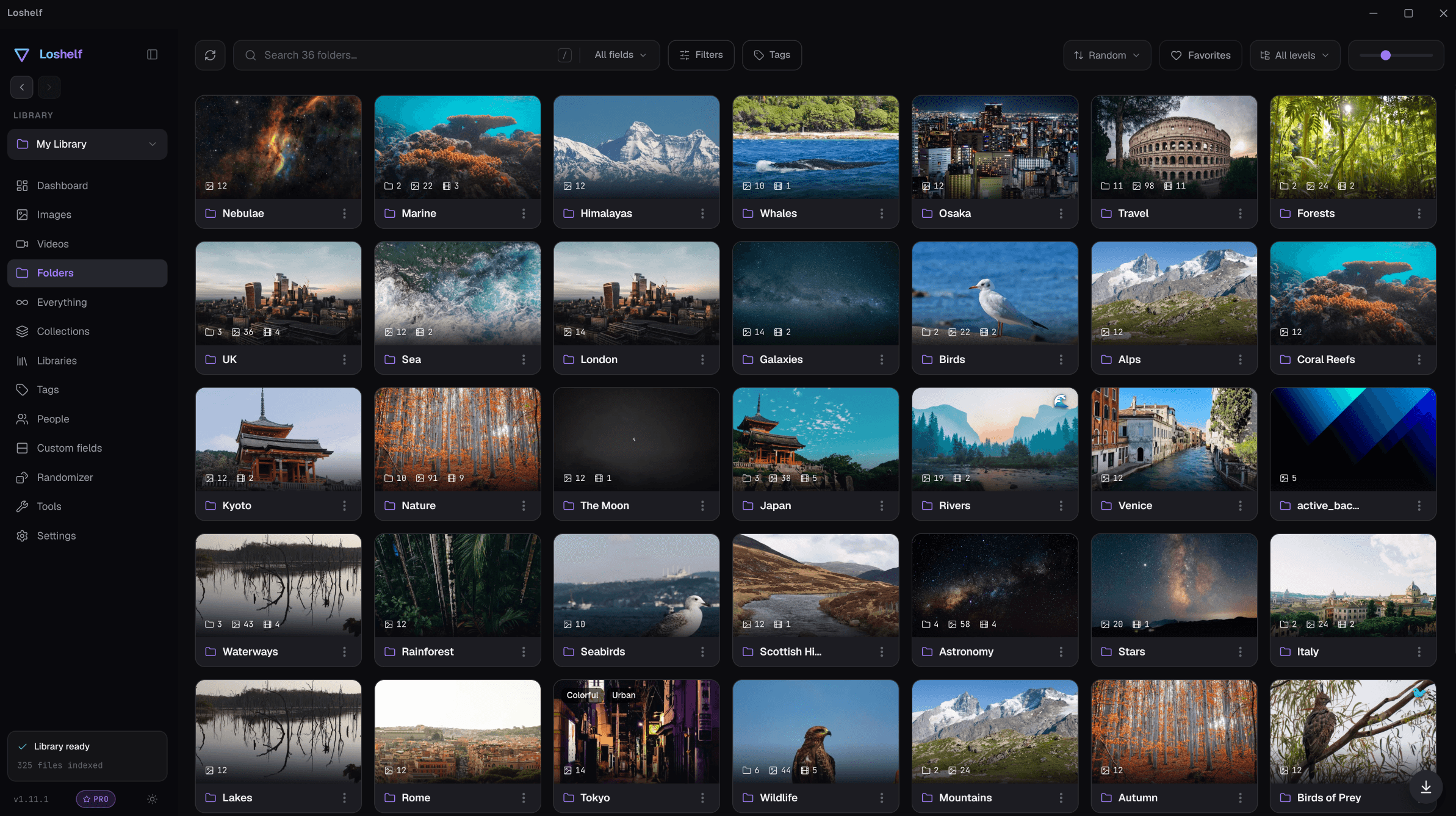
You can also give a folder a display title and a short description without renaming anything on disk, which is useful when the folder name is a date and the card should say where you were.
Make the inside of a folder worth opening
Opening a folder should feel like opening an album, not a file listing. In Loshelf a folder opens with a full-width banner image across the top (you can choose a different photo from the cover), then its subfolders, then its photos and videos together in a masonry grid that keeps each picture’s shape instead of cropping everything to squares.
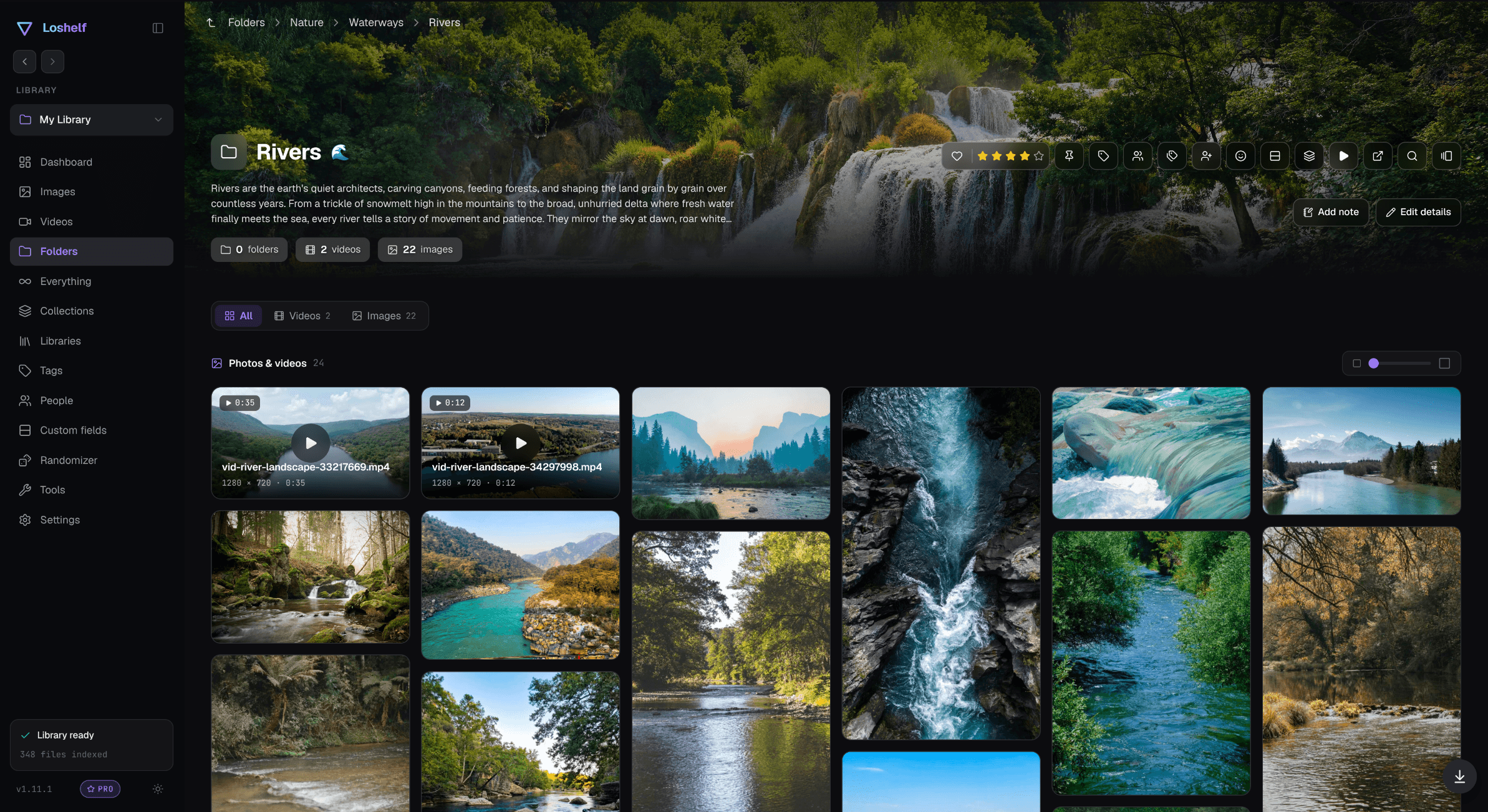
A size slider takes the grid from lots of small thumbnails to a few large ones, so the same folder works for skimming and for looking properly.
View photos properly, full screen
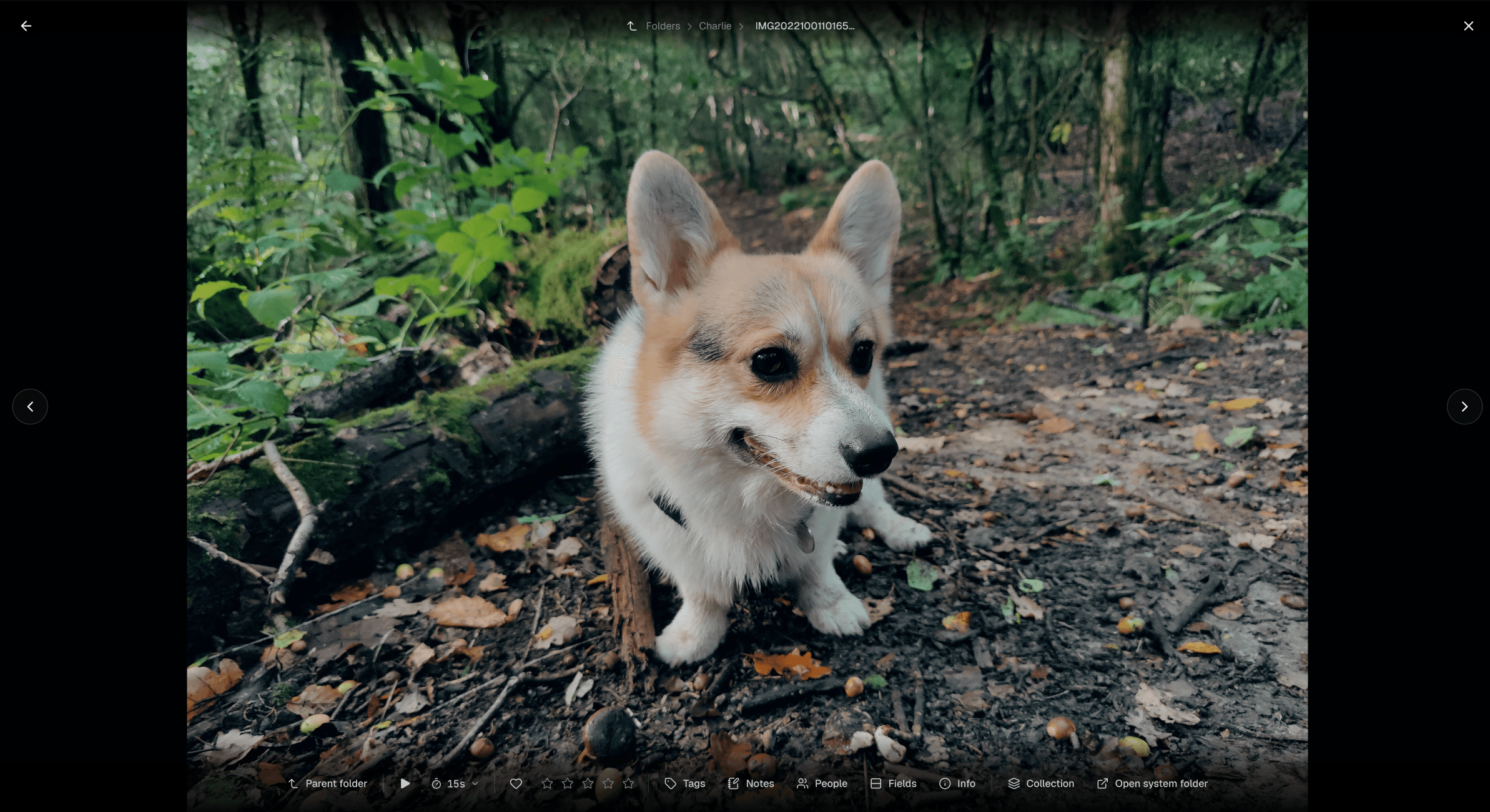
Click a photo and it should take over the screen. Loshelf’s viewer uses a dark backdrop, hides its controls when you’re not using them, and lets you zoom and pan with the mouse wheel. You can step to the next and previous photo in the folder, and iPhone HEIC photos display right alongside your JPEGs (see viewing HEIC photos on Windows).
Turn any folder into a slideshow
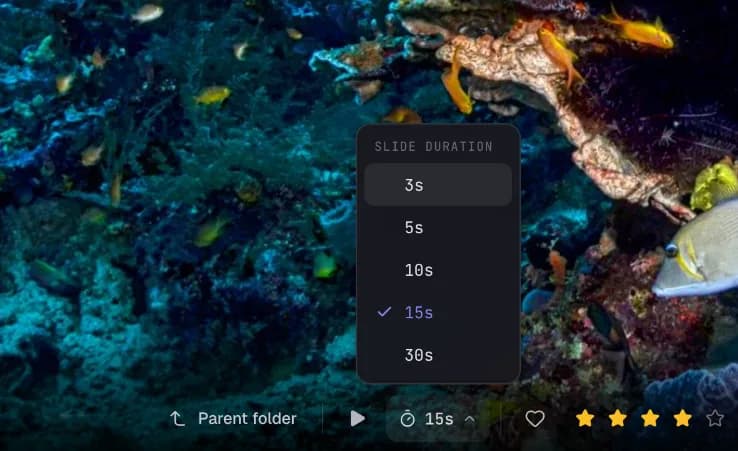
Most built-in photo viewers can run a basic slideshow, so try yours first. In Loshelf, Play slideshow on a folder runs through just that folder’s photos with a gentle fade, and you choose how long each one stays up: 3, 5, 10, 15 or 30 seconds. Put it on a big screen at a family get-together and it does the remembering for you.
Put your favorites on the front page
A gallery needs a front page. Loshelf’s dashboard lets you pin the folders you return to most, and collections let you gather photos from different folders into one set, such as “Best of 2024” or “Prints for the hallway”, without moving any files.
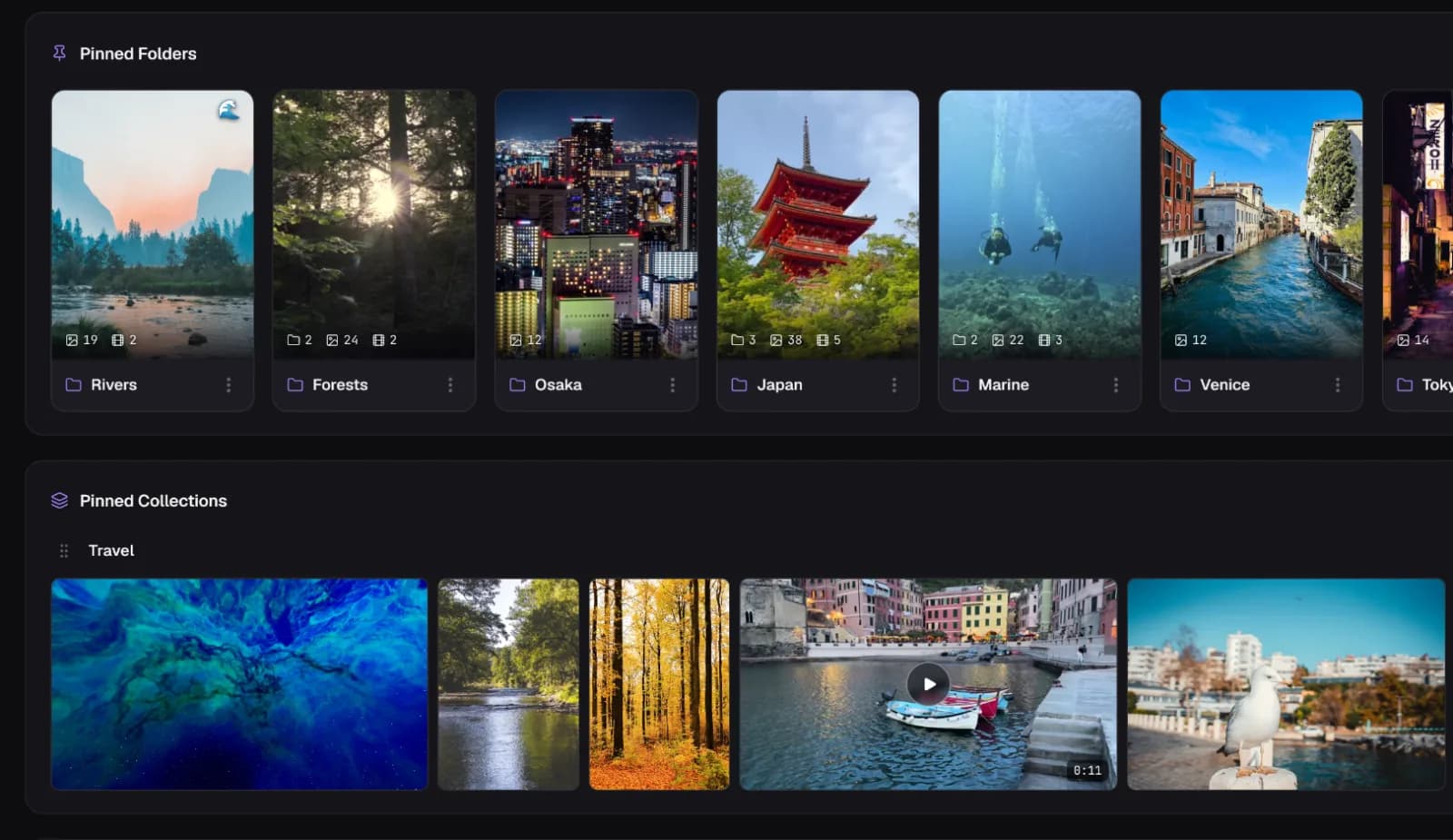
Everything above happens on your own computer. Nothing is uploaded and there’s no account, and your photos stay in the folders you put them in. There’s more on browsing in Loshelf on the photo gallery and folder organizer pages.
Questions
Can I make a photo gallery on my computer without uploading anything?
Yes. A local gallery app reads the folders already on your computer and shows them as a gallery, with no account and no uploading. Loshelf works entirely offline on Windows, macOS (Apple Silicon) and Linux.
How do I choose which photo represents a folder?
In Loshelf you can pick any image in a folder as its cover, and a separate banner image for the top of the folder. If a folder contains a file named cover (cover.jpg, cover.png and so on), Loshelf uses it automatically.
Will giving folders covers and descriptions change my files?
No. Covers, banners, titles and descriptions are stored in Loshelf's own index inside a hidden .loshelf folder in the library. Your photos and folder names stay as they are.
Can it show videos in the same gallery?
Yes. Folders show their photos and videos together in one grid, and videos play a short preview when you hover over them.
Free for 1 library of 10,000 photos and 1,000 videos · one-time $29 for unlimited