How to browse a huge photo collection on Windows without it grinding to a halt
Updated October 7, 2026
Why big photo folders feel so slow
File Explorer is a file manager. It’s very good at copying, moving and renaming, and it treats photos as files that happen to have a picture inside. Open a folder of 8,000 photos and it has to do three slow things before the view feels finished:
- Build thumbnails. Every image is read from disk and shrunk. Windows caches the results, but the cache gets cleared now and then (Disk Cleanup offers it, for example), and then it all happens again.
- Read photo details. Folders that Windows has decided are “Pictures” folders get extra columns such as date taken and dimensions, which means opening each file to read them.
- Show one folder at a time. A collection built up over years is spread across hundreds of folders. Seeing it means clicking into each one and waiting for each one to load.
On a fast internal SSD you mostly feel the first two. On an external hard drive, where much of a large collection lives, you feel all three, plus the drive spinning up.
Free fixes worth trying first
These cost nothing and help noticeably on moderately large folders.
1. Tell Windows the folder holds “General items”
Right-click the folder, choose Properties, open the Customize tab and set Optimize this folder for to General items. Tick the box to apply it to subfolders too. Explorer then stops reading photo details for the extra columns, which can make a very large folder open much faster. You still get thumbnails.
2. Split giant folders
A single folder with 20,000 photos in it is slow to show in almost anything. Splitting it by year, or by year and event, means each folder you open is a manageable size. It also makes the collection easier to make sense of later.
3. Try the Windows Photos app
The Photos app that comes with Windows can show photos from folders you choose in one gallery. It’s fine for a moderate collection. It puts everything into a single date-ordered stream, though, which helps less when your photos are organized by topic, trip or project rather than by date.
Browse it as a library instead
Past a few thousand photos, the faster approach is to stop opening folders one at a time. A library app reads the whole collection once, remembers what it found, and keeps its own thumbnails. After that, browsing doesn’t depend on the size of any one folder or on Explorer’s cache.
That’s what Loshelf does. You add a folder (or a whole drive) as a library and it scans it in the background. A first scan of a very large collection takes a while, so it’s worth leaving it to finish. After that, rescans only look at what changed.
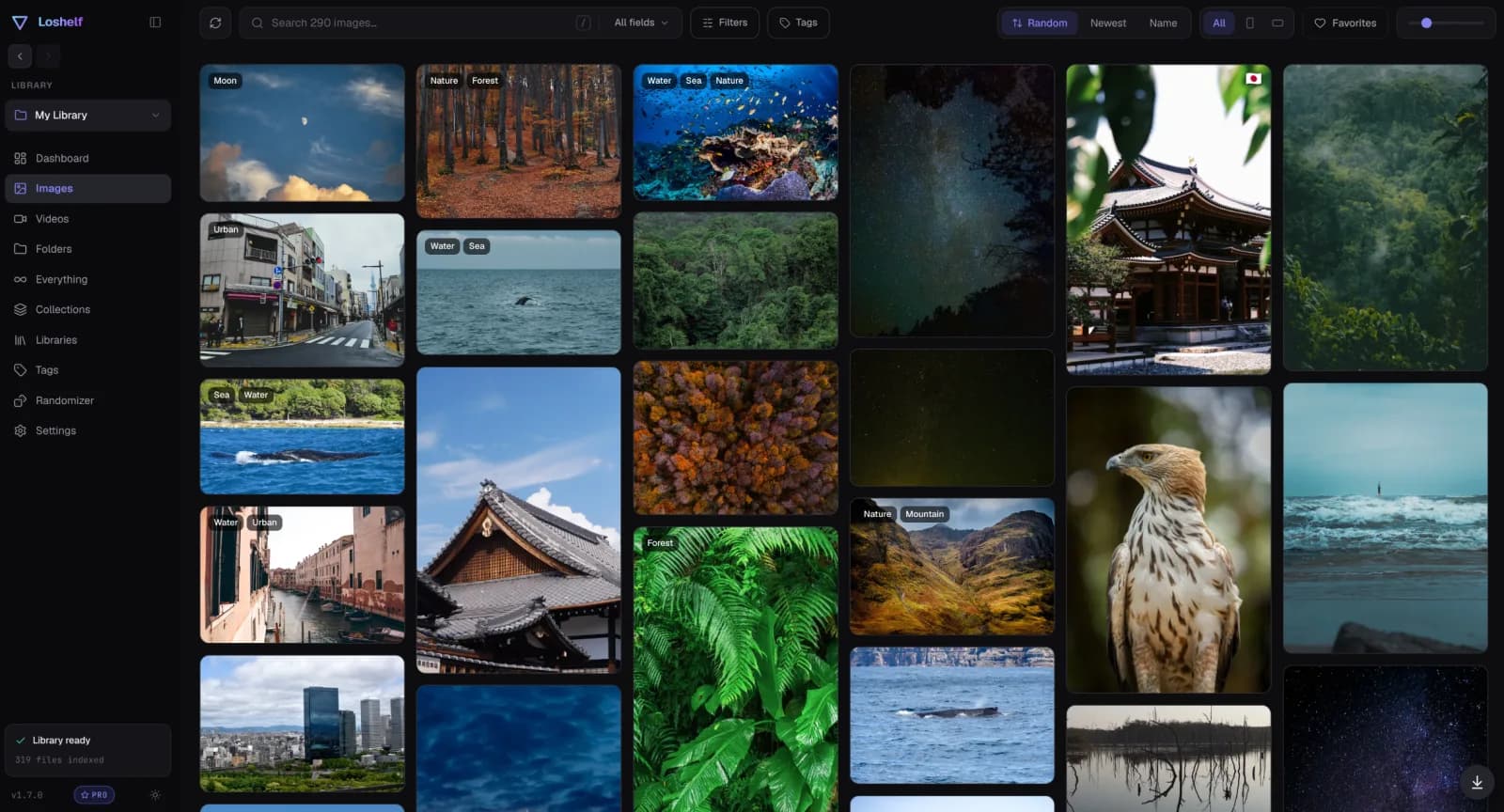
Once the library is indexed:
- Everything scrolls as one grid. Images appear in a masonry layout and load as you scroll, so you never wait for a whole folder.
- You choose the size. A slider takes the grid from small thumbnails for skimming to large previews for looking properly.
- Random order stays fast, even on a library of a million files. Shuffling is one of the best ways to see a big collection rather than always looking at the same first few folders.
- Folders are still there when you want them, shown as cards with a cover image instead of a list of names.
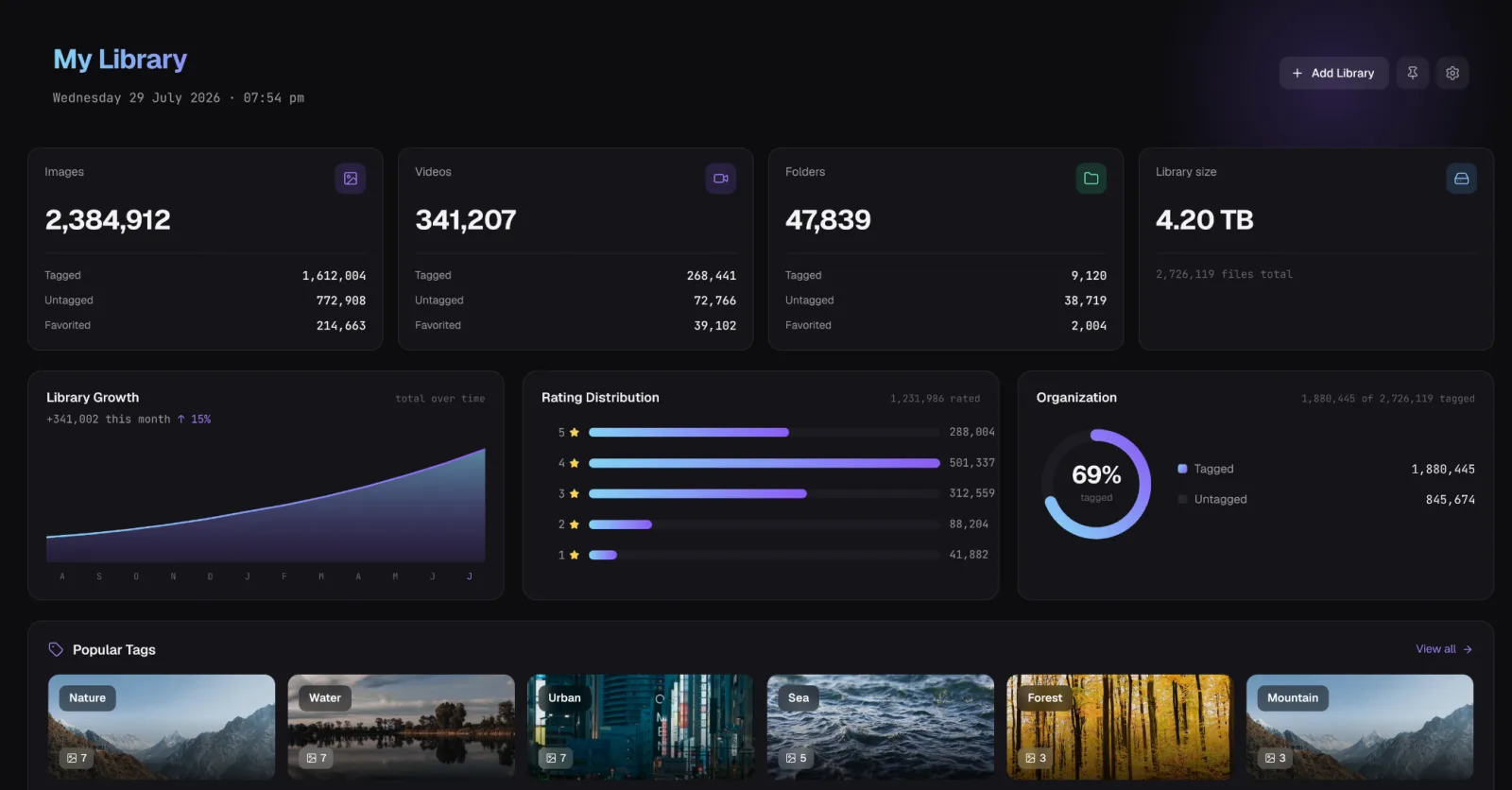
Your photos stay exactly where they are. Loshelf doesn’t copy them into its own storage; it keeps its index and thumbnails in a hidden .loshelf folder inside the library. More on what makes this fast at scale is on the large libraries page.
Finding a photo again later
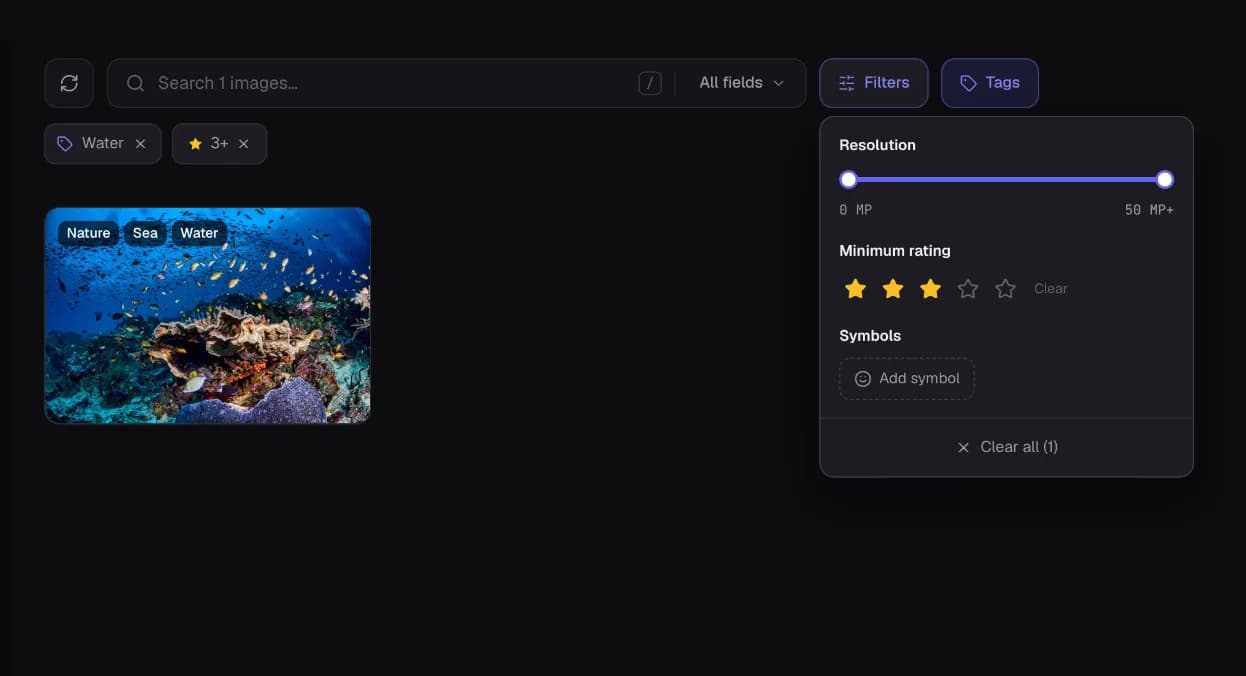
Browsing is half the problem. The other half is finding one particular photo in a collection that size. Folder names only get you so far. A library lets you add a little information once and use it forever:
- Tags such as people, places or themes, added to one photo or to a whole folder at once.
- Star ratings and favorites, so the best shots are one filter away.
- Filters by resolution and orientation, handy when you want a portrait shot, or something large enough to print.
Habits that keep a big collection browsable
Whatever you use to view them, a few habits make a large collection easier to live with:
- One folder per event or trip, named so it sorts by date, for example
2024-07 Cornwall. - Keep the camera roll dumps separate from the folders you’ve sorted, so unsorted photos don’t bury the ones you care about.
- Mark favorites as you go. Five seconds per trip saves an hour of scrolling later.
- Back up the whole thing. A library that lives on one drive is one failure away from gone.
If you’d like your folders to look as good as the photos inside them, the next step is turning your photo folders into a gallery.
Questions
Why does File Explorer take so long to show thumbnails?
Explorer creates a thumbnail for every image the first time it shows a folder, and keeps them in a cache that Windows sometimes clears. A folder with thousands of large photos means thousands of images to read and shrink before the view settles, and it may have to do that work again later.
Is there a free way to browse a large photo collection on Windows?
Yes. Setting big folders to "General items" in Explorer, using the Windows Photos app, and splitting very large folders into smaller ones all help and cost nothing. Loshelf is also free for one library of up to 10,000 photos and 1,000 videos.
How many photos can Loshelf handle?
Loshelf is built for libraries of a million files or more, spread across several drives. The free version covers one library of up to 10,000 photos and 1,000 videos; a one-time $29 upgrade removes the limits.
Does Loshelf copy or import my photos?
No. It reads the folders you point it at where they already are, and keeps its index and thumbnails in a hidden .loshelf folder inside the library.
Free for 1 library of 10,000 photos and 1,000 videos · one-time $29 for unlimited