How to open and view iPhone HEIC photos on Windows
Updated October 7, 2026
Why Windows can’t open your iPhone photos
Since 2017 iPhones have saved photos in HEIC, a format that keeps the same quality as JPEG at about half the file size. The picture inside is compressed with HEVC, a video codec, and that’s the catch: Windows needs a HEVC decoder to show it, and that decoder isn’t always included.
So the symptoms vary by PC. Some show HEIC thumbnails and open them normally. Others show blank icons, or an error saying a codec is required. It depends on which extensions happen to be installed.
Fix 1: install the Windows extensions
This is the way to make HEIC work everywhere in Windows, including File Explorer thumbnails.
- Open the Microsoft Store and install HEIF Image Extensions. It’s free and may already be there.
- Install HEVC Video Extensions. Microsoft charges a small one-off fee for it. Some PCs already include a manufacturer version, so check whether HEIC photos open after step 1 before you buy it.
- Restart File Explorer (or sign out and back in) so thumbnails refresh.
Fix 2: use a viewer that reads HEIC itself
Some apps carry their own HEIC decoder, so they don’t depend on Windows extensions at all. This is the simplest route if you mainly want to look at your iPhone photos rather than edit them.
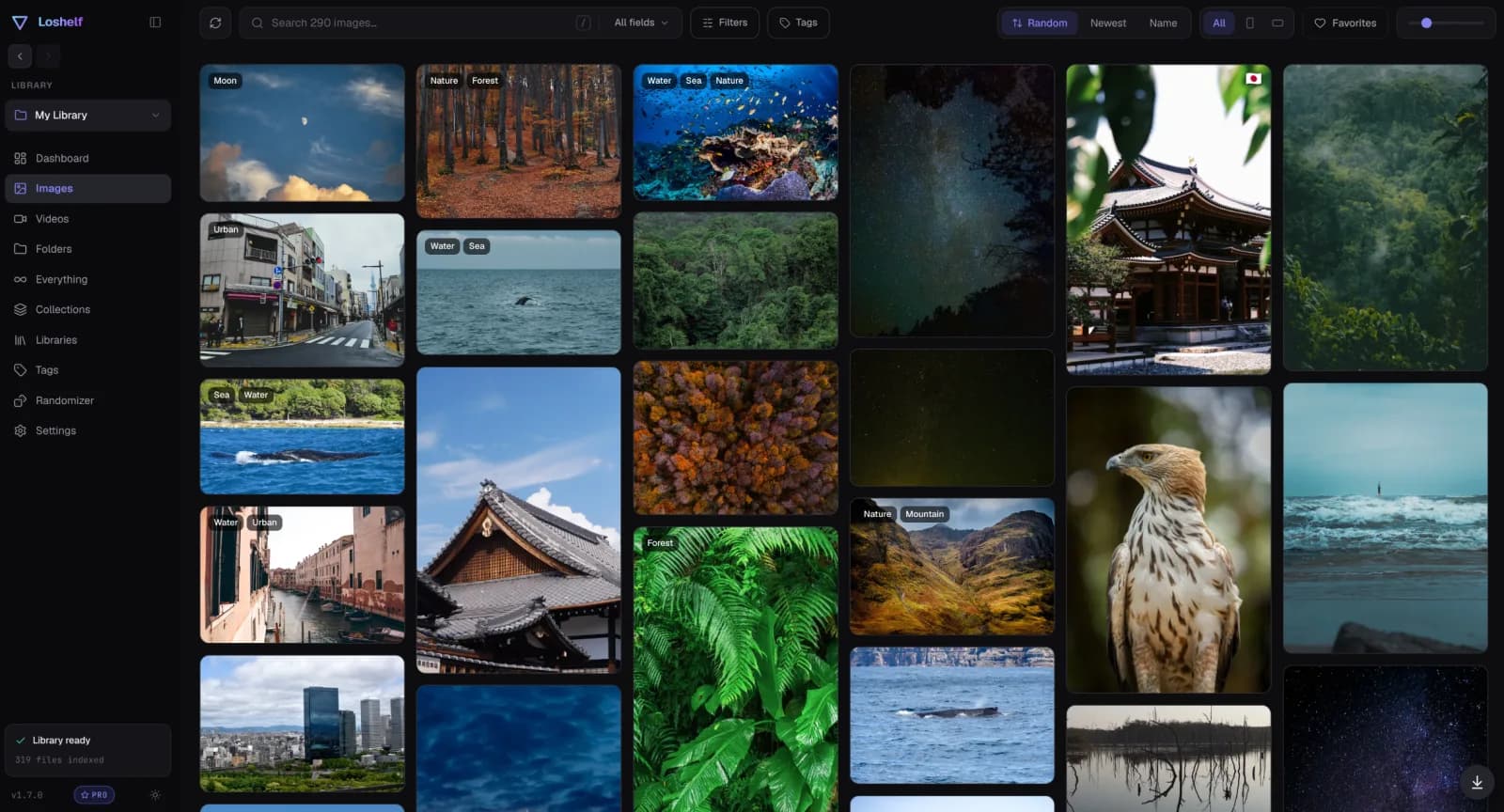
Loshelf is one of them. It reads HEIC on its own, so iPhone photos appear in the same grid as your JPEGs, PNGs and everything else, with no extension to install and no conversion step. The original files are left exactly as they are; Loshelf makes a viewable copy in its own cache behind the scenes.
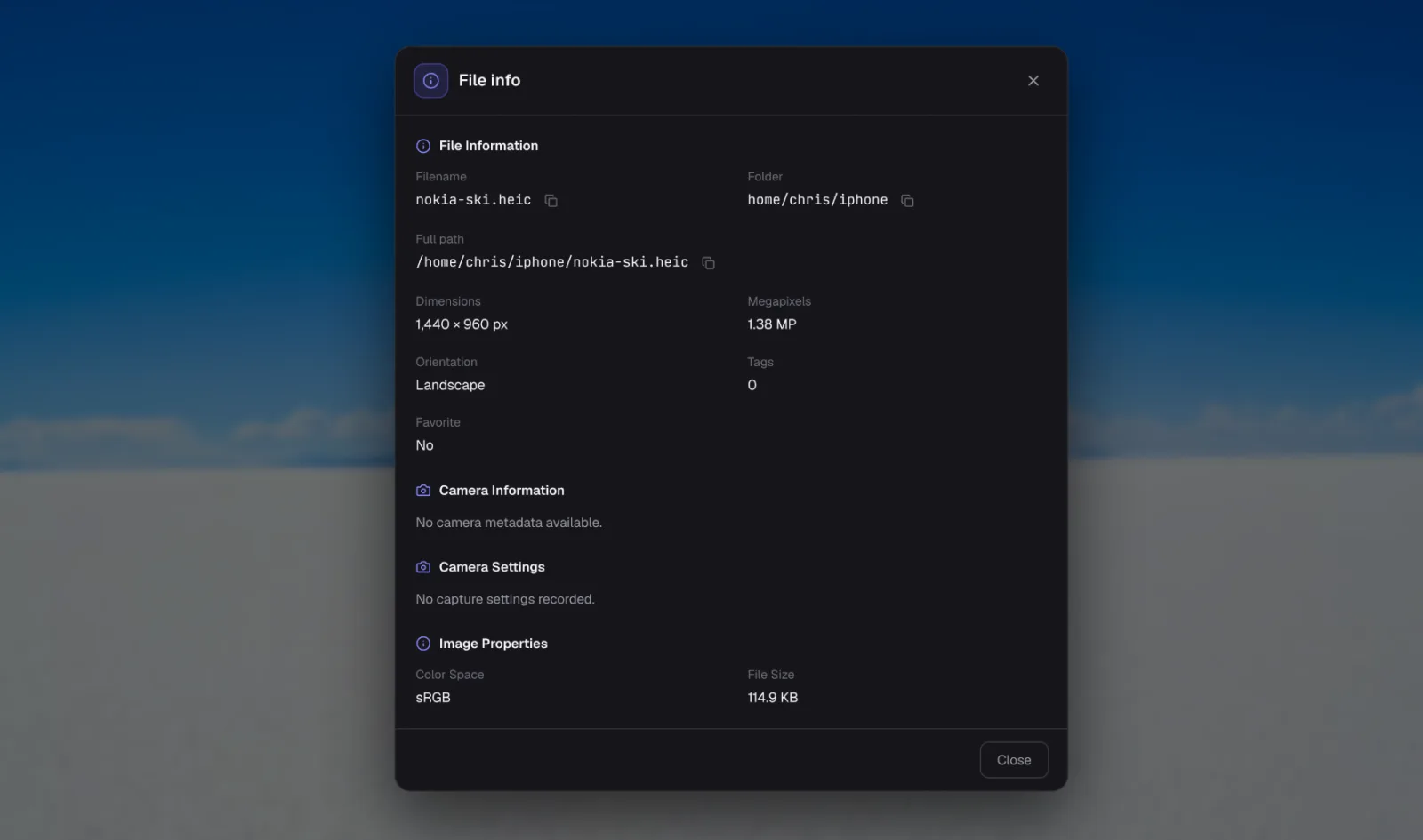
That’s particularly useful for big phone backups: years of camera roll, mixing HEIC, JPEG and video, can be browsed together as one library. If that sounds like your situation, browsing a huge photo collection on Windows covers the rest.
Fix 3: stop new photos saving as HEIC
If you’d rather your iPhone just made JPEGs, change two settings. Neither affects photos you’ve already taken.
- Settings → Camera → Formats → Most Compatible. New photos are saved as JPEG. They take up more space on the phone.
- Settings → Photos → Transfer to Mac or PC → Automatic. When you copy photos to a computer with a cable, the iPhone converts them to JPEG on the way.
When converting to JPEG actually makes sense
You don’t need to convert your photos to look at them, and converting a whole library roughly doubles the space it takes and loses a little quality. Convert when a specific destination needs it: a website upload that only takes JPEG, an older photo printing service, or a relative’s computer you can’t install anything on. Do it to copies of the photos you’re sending, and keep the originals.
Loshelf is a viewer and organizer rather than a converter, so for that job use a dedicated tool. For browsing and enjoying the photos, there’s more on the photo gallery page.
Questions
What is a HEIC file?
HEIC is the format iPhones use by default for photos. It stores the same picture as a JPEG in roughly half the space, but older software and many Windows PCs can't open it without extra codecs.
Do I have to convert HEIC photos to JPEG?
Not to view them. With the right Windows extensions, or a viewer that decodes HEIC itself, you can browse them as they are. Convert only if you need to send the photos to something that won't accept HEIC.
How do I stop my iPhone saving photos as HEIC?
On the iPhone, go to Settings, Camera, Formats and choose Most Compatible. New photos are then saved as JPEG. It doesn't change photos you've already taken.
Does Loshelf convert or change my HEIC files?
No. Loshelf leaves the original files as they are. To display them it makes a viewable copy in its own cache, which you never have to manage.
Free for 1 library of 10,000 photos and 1,000 videos · one-time $29 for unlimited