How to preview and browse a large video collection
Updated October 7, 2026
Why video folders are so hard to browse
A photo thumbnail shows you the whole photo. A video thumbnail shows you one frame of something that might be two hours long, often a black frame from the very start. Put a few hundred of those in a folder and you’re back to opening files one at a time to find out what they are.
The bigger the collection, the worse it gets: home videos, recordings, downloaded films and screen captures, spread across folders and drives, many of them in formats Windows can’t even make a thumbnail for.
Getting the most out of File Explorer
Before installing anything, a couple of Explorer settings help:
- Use Details view and add the Length column. Right-click a column heading, choose Length, and you can sort by duration. Add Frame height to see resolution too.
- Use Large icons for a visual skim. It’s still one frame per file, but bigger.
- Keep a good player installed for the formats Windows won’t open on its own.
That’s fine for a few dozen videos. Past that, you need to see more than one frame per clip.
See what’s in a clip without opening it
The single most useful feature for a big video collection is a hover preview: point at a video and it plays a few short snippets from across the whole clip, so you know in a second whether it’s the one you want.
Loshelf does this for every video in a library. Previews are generated in the background after the library is scanned, so on a big collection they fill in over a while rather than all at once. Each card also shows the duration and a poster made from several frames.
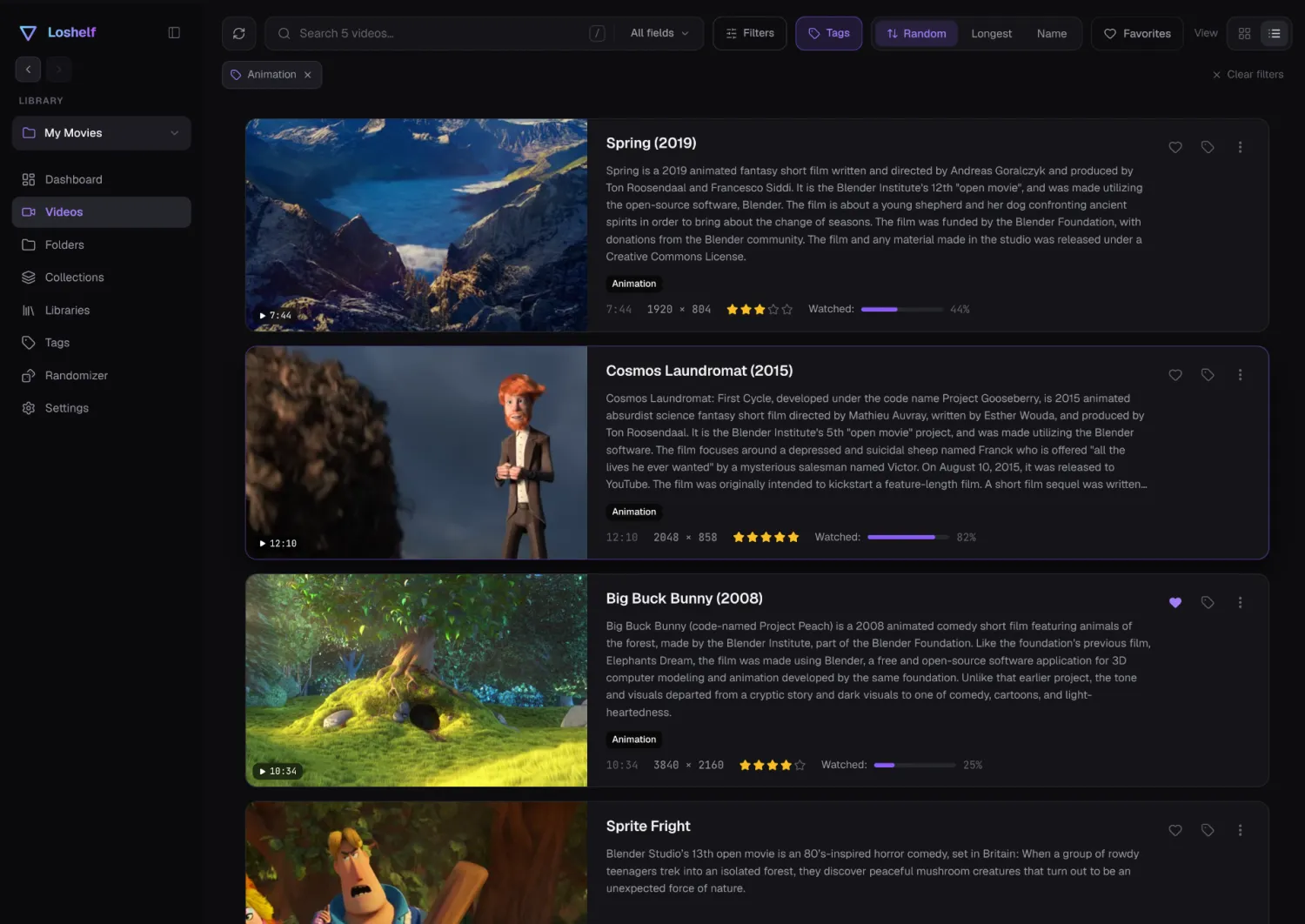
If you’d rather read than look, switch to the list view, which shows each video’s description, rating, length and how much of it you’ve watched.
Find the clip you want by length and quality
With hundreds of videos, filtering beats scrolling. Useful questions to be able to ask a collection:
- Everything over an hour (or under two minutes)
- Only 4K, or only the old low-resolution stuff
- The longest videos first
- Everything tagged with a person, place or theme
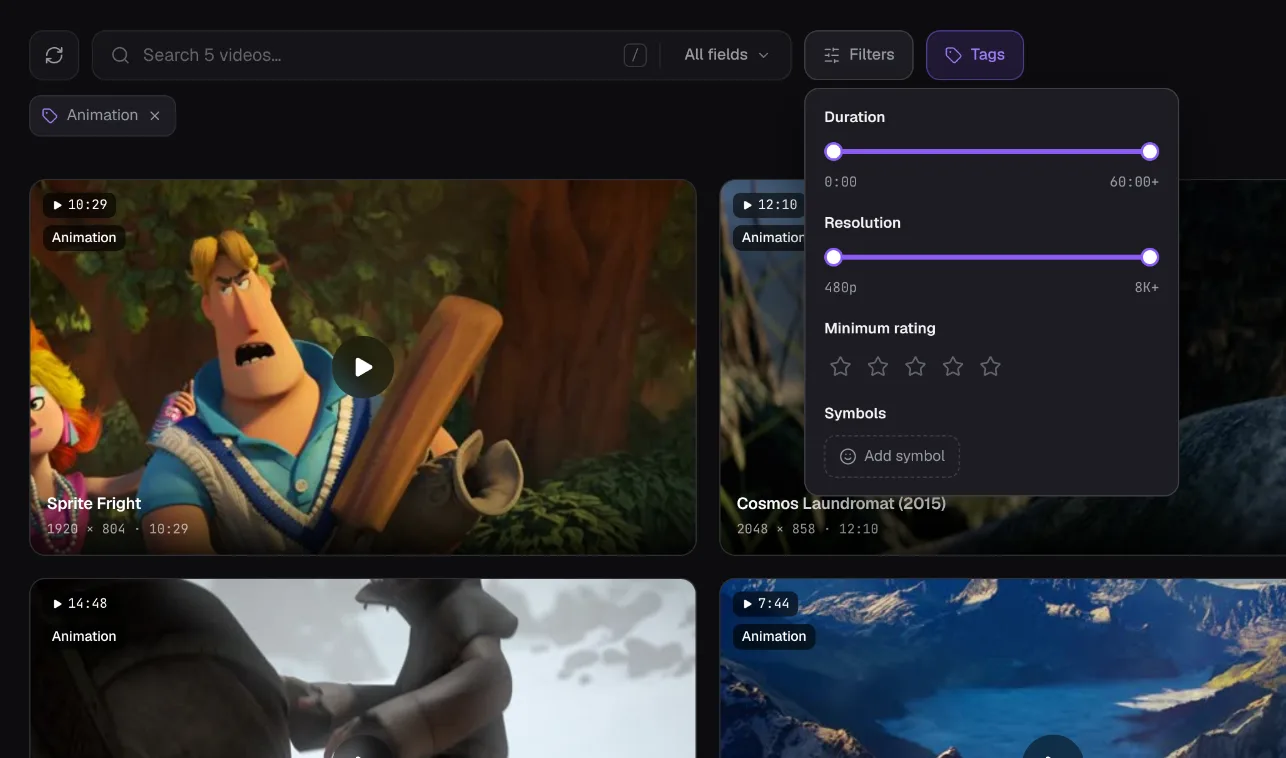
Loshelf’s video search has duration and resolution filters, a Longest sort, tags and ratings, and searches the text of your notes as well as file names.
Watch, and pick up where you left off
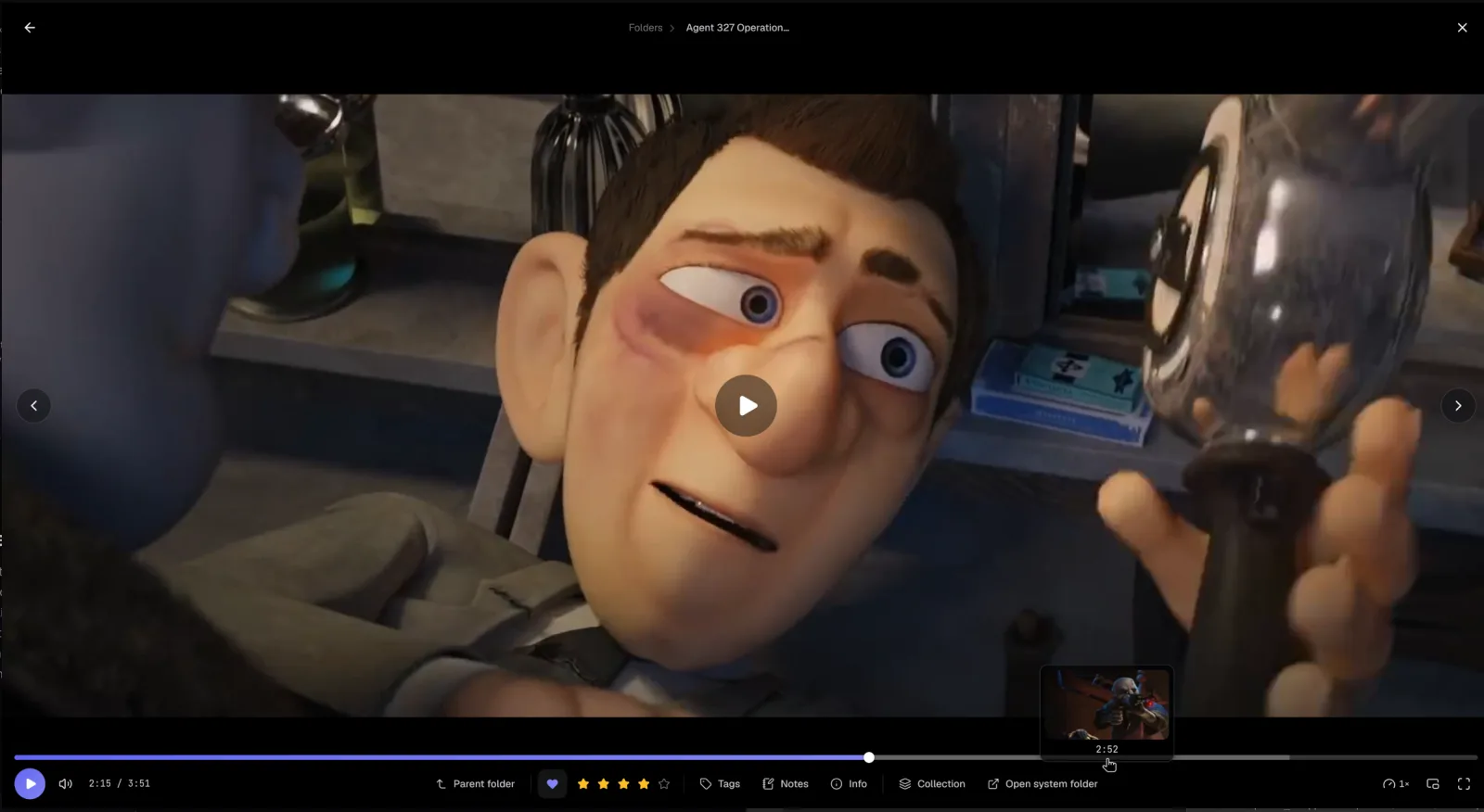
Long videos rarely get watched in one sitting. A player that remembers your place in every file saves a lot of scrubbing. Loshelf’s built-in player does, and shows a preview frame as you hover along the timeline so you can jump straight to the scene you want.
The formats that won’t play
Old camcorder files, AVI and WMV downloads from years ago, FLV clips: these are the videos most likely to show a blank icon in Explorer and refuse to open in the Windows player. Loshelf has a built-in decoder that plays AVI, WMV, MPG, FLV and older MKV and MOV files directly, with normal seeking and no conversion. For the rare file it still can’t read, it can convert a playable copy in the background or hand it to your system player.
All of it works offline on your own computer, and your videos stay in the folders they were in. There’s more detail on the video organizer page, and if your photos need the same treatment, see browsing a huge photo collection.
Questions
How can I preview a video without opening it?
File Explorer shows a single frame as the thumbnail, and a Length column in Details view. For more, a video library app can play short preview clips when you hover over each video, so you can tell what's in it without opening it.
Why don't some of my videos show thumbnails?
Windows can only make a thumbnail for formats it has a codec for. Older formats like AVI, WMV and FLV, or unusual codecs inside MKV files, often show a blank icon. An app with its own decoder can show and play them anyway.
Can Loshelf play old formats like AVI and WMV?
Yes. Loshelf has a built-in decoder that plays AVI, WMV, MPG, FLV and older MKV and MOV files directly in its player, with normal seeking and no conversion step.
Does Loshelf upload or move my videos?
No. It works with the folders already on your computer, fully offline, and doesn't copy your videos anywhere.
Free for 1 library of 10,000 photos and 1,000 videos · one-time $29 for unlimited